YRGB, Color Managed or ACES? Choosing a colour pipeline in DaVinci Resolve
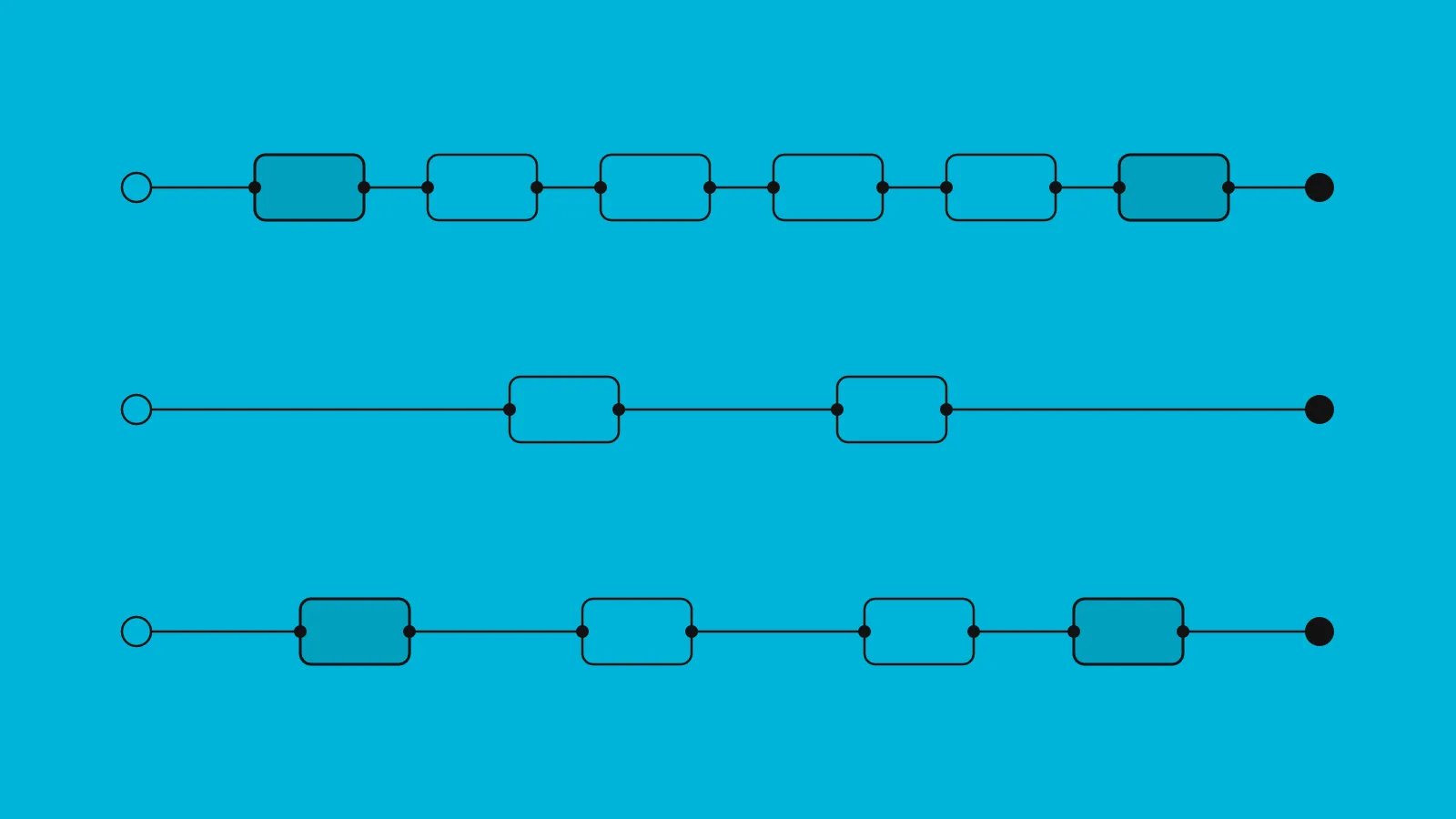
All three can give you a beautiful image. The difference is who does the conversions. With DaVinci YRGB, you do them yourself with nodes. With DaVinci YRGB Color Managed, Resolve does them for you from settings. With ACES, a shared industry standard does them, which matters when other people and other software are involved.
My short advice: if you shoot on one camera and want to understand your image, start with YRGB and Color Space Transform nodes. If you mix cameras, phones and Log formats, use Color Managed. Use ACES when a VFX house, a studio or a delivery spec asks for it.
What colour management actually does
Every pipeline answers three questions:
- Input: what is the footage? (For example Nikon N-Log, Sony S-Log3, iPhone HLG, plain Rec.709.)
- Working space: what colour space do you grade in?
- Output: what does the audience see? (Usually Rec.709 at gamma 2.4 for SDR video, or a version tagged for Apple devices.)
Get those three right, and your footage behaves predictably. Get one wrong, and you spend the grade fighting it.
DaVinci YRGB: you do the conversions
This is Resolve's default. Resolve doesn't convert anything; the image goes through your nodes as it is. You add the conversions yourself, usually with the Color Space Transform effect (CST).
A typical node tree for Log footage:
Node 1  CST   Input: your camera (e.g. Nikon N-Gamut / N-Log)
              Output: DaVinci Wide Gamut / DaVinci Intermediate
Node 2  Balance and exposure
Node 3  Contrast
Node 4  Look
Node 5  CST   Input: DaVinci Wide Gamut / DaVinci Intermediate
              Output: Rec.709 / Gamma 2.4
Why I like it for learning: every step is visible. You can bypass the CSTs and see the raw Log, or move a node before or after a conversion and see exactly what changes. Once you understand this tree, the other pipelines stop being black boxes.
The catch: you must set it up correctly on every clip, and mixed cameras mean a different input CST per camera.
DaVinci YRGB Color Managed: Resolve does the conversions
Turn it on in Project Settings → Color Management: set Color science to DaVinci YRGB Color Managed. Then choose:
- a Color processing mode (the SDR presets are a good start for normal video),
- the Output color space (Rec.709 Gamma 2.4, or Rec.709-A for files watched mostly on Apple devices).
Each clip gets an input colour space. For many cameras Resolve reads it from the metadata; for others, right-click the clip and set Input Color Space yourself. Resolve then converts every clip into a common working space (DaVinci Wide Gamut Intermediate in the wide-gamut presets) and back out at the end.
Why it's good for real projects: a drone clip, a phone clip and two Log cameras can sit on one timeline, and they all arrive in the same space. Your grades and looks then behave the same on every clip.
The catch: it can feel like magic until something is wrong. If a clip looks off, the first thing to check is its input colour space.
ACES: the shared standard
ACES (the Academy Color Encoding System) is an industry standard used by studios, VFX and finishing houses. In Resolve you choose ACEScct as the colour science, set an input transform per camera, and an output transform for your delivery.
When to use it: when the project is going to other people (a VFX vendor, an online editor, a streaming delivery that asks for ACES files) and everyone needs to speak the same language.
The catch: for a solo creator delivering to YouTube or a client, ACES rarely gives you anything that Color Managed doesn't. Its output transforms have their own look, and many LUTs and techniques you'll find online assume a Rec.709 or DaVinci Wide Gamut workflow instead.
Side by side
| DaVinci YRGB | YRGB Color Managed | ACES | |
|---|---|---|---|
| Who converts | You, with CST nodes | Resolve, from settings | ACES transforms |
| Best for | Learning, single camera, full control | Mixed cameras and phones | VFX, studios, specs that require it |
| Easy to break? | Yes, if a CST is missing | Yes, if an input space is wrong | Yes, if a transform is wrong |
| LUTs from the web | Usually expect this | Work if placed correctly | Often don't fit |
Phone footage
Phones are a special case. Standard iPhone video is often HLG (an HDR format), and newer models can record Apple Log. Both are supported in Resolve's CST and Color Managed settings. Set the input correctly (Rec.2100 HLG or Apple Log), and phone footage grades like any other camera instead of looking harsh or washed out.
Three mistakes I see every week
- Converting twice. A camera LUT on a clip that colour management is already converting. Use one method per clip.
- Grading before the conversion. In YRGB, the input CST should come first. Balancing Log before it's converted works against you.
- Using a "Rec.709 LUT" in a wide-gamut timeline. Many looks expect Rec.709 input. Place them after your output conversion, or convert into Rec.709 first.
If your exports also look different on different screens, that's the output side of the same chain: see why your DaVinci Resolve export looks washed out.
Choosing a pipeline, and understanding it well enough to trust it, is what the Colour management module is about.