Waveform, parade, vectorscope: what each scope actually tells you
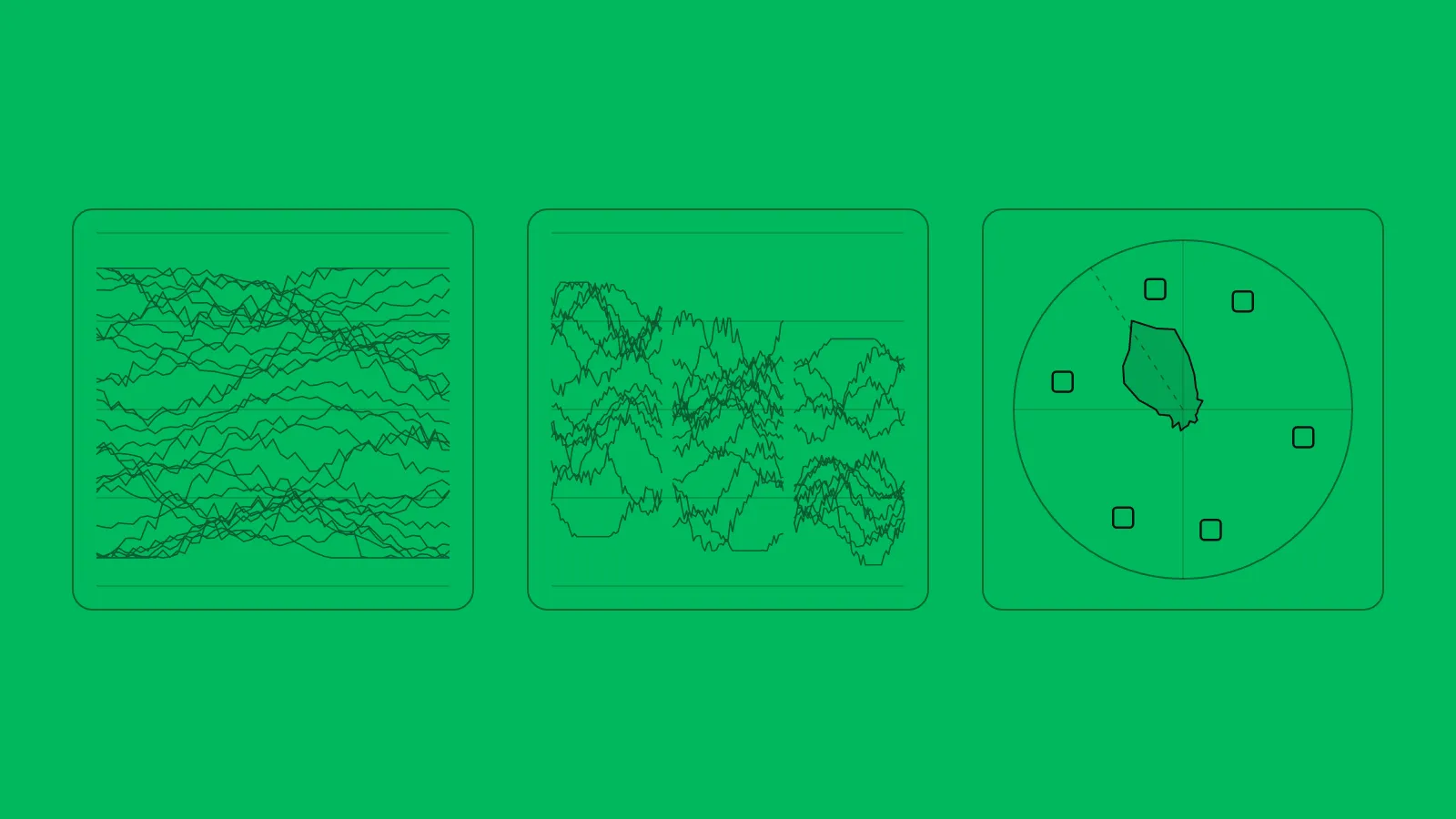
The waveform shows how bright each part of the picture is. The parade shows the same thing for red, green and blue separately, which makes colour casts easy to see. The vectorscope ignores brightness and shows only colour: which hue, and how saturated.
Your eyes adapt to whatever is on the screen, and your monitor may not be accurate. Scopes don't adapt. That's why colourists look at them all day. Here is what each one tells you, and the order I read them in.
To open them in Resolve, go to Workspace → Video Scopes, or use the scopes panel on the Color page. Choose the layout with four scopes so you can see the waveform, parade and vectorscope at once.
The waveform: brightness
Imagine the picture squeezed flat from top to bottom. Left to right on the waveform is left to right in the frame. Up and down is brightness: the bottom is black, the top is white. In Resolve the scale runs from 0 to 1023 (10-bit values).
What to look for:
- Where the blacks sit. If the lowest part of the trace floats well above the bottom, the shadows are lifted and the image will look grey.
- Where the whites sit. A trace pressed flat against the top is clipping: that detail is gone.
- How spread out it is. A trace bunched in the middle is low contrast. That's normal for Log footage straight from the camera.
These are two real waveforms from one of my shots, before and after the grade:
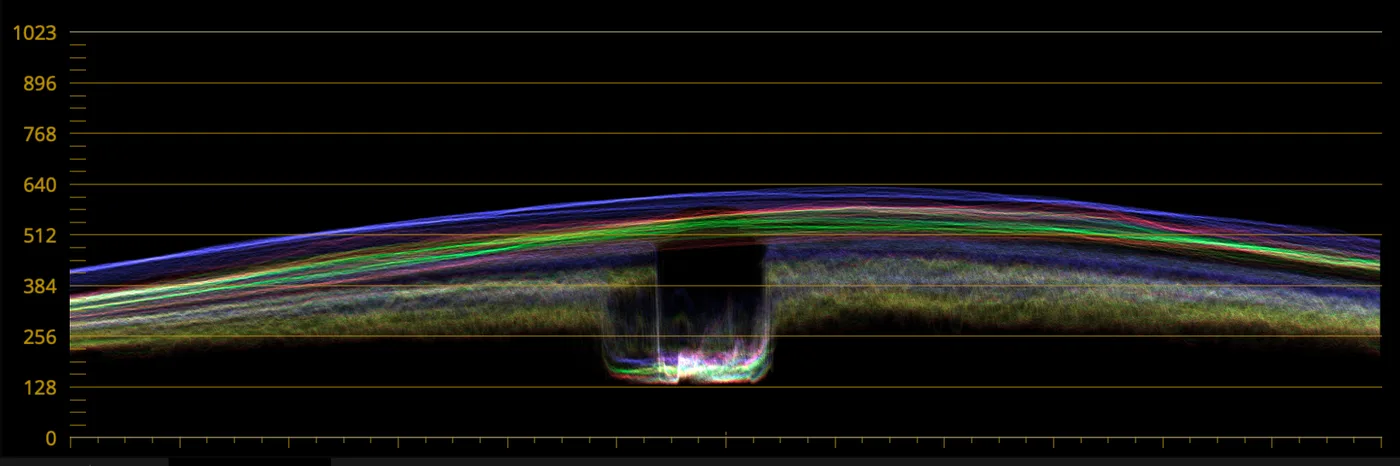
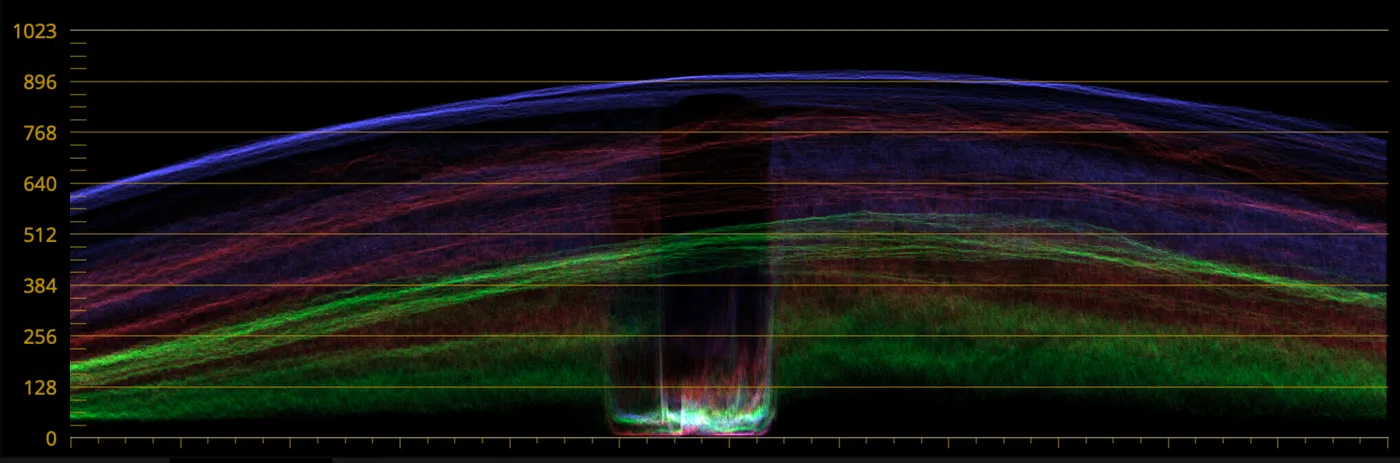
The dark shape in the middle of both is her figure against the bright sea and sky. In the Log version everything lives between roughly 128 and 640. After the grade, the shadows reach the bottom and the sky climbs towards 900. Same frame, completely different contrast, and you can measure it.
The parade: colour balance
The parade is three waveforms side by side: red, green and blue. It answers one question very well: is anything that should be neutral actually neutral?
Find something in the frame that should have no colour: a white wall, a grey road, a black jacket. On the parade, those parts should sit at the same height in all three channels.
- Blue higher than red in the highlights? The image is cool in the highlights.
- Red higher in the shadows? The shadows are warm.
- All three lined up on your neutral object? Your balance is right, whatever your eyes say after an hour of grading.
The parade shows balance at each brightness level, which is exactly what Lift, Gamma and Gain change. If the shadows are blue but the highlights are fine, you fix it with Lift, not Gain.
The vectorscope: hue and saturation
The vectorscope throws brightness away. Every pixel becomes a point on a circle:
- The centre means no colour at all (white, grey or black).
- The distance from the centre is saturation. The further out, the more intense the colour.
- The angle is the hue.
The six small boxes are targets for red, magenta, blue, cyan, green and yellow (the colour bars at 75%). They show you where each hue lives, and roughly how far is "very saturated".
The most useful line on the vectorscope is the skin tone line, between red and yellow. Skin of every tone sits close to that line. People differ mainly in how bright and how saturated their skin is, not in its hue. If a face drifts towards green or magenta, the skin will look wrong long before you can say why. Isolate the face (with a window or qualifier) and check that its trace lies along the line.
Our hero scope is drawn from exactly this: six targets, a skin line, and a trace in the middle.
The histogram, briefly
The histogram counts how many pixels sit at each brightness. It's useful for a quick check of clipping, but it doesn't tell you where in the frame things are. I use the waveform instead for almost everything.
A routine you can use on any shot
- Waveform: set the black and white points. Decide where the darkest and brightest parts should sit.
- Waveform: shape the contrast between them.
- Parade: balance. Line up the channels on something neutral.
- Vectorscope: check saturation and skin.
- Your eyes: now judge whether it looks right, and whether it feels right for the story.
Reading scopes takes practice, and it's much faster with someone pointing at your own footage. It's the heart of the Reading the image module.